User Guide
What this guide is for
Section titled “What this guide is for”This page is the practical usage guide for AI Relay Box.
Use it when you want one place to understand:
- how the local gateway works,
- how to add and activate providers,
- how to connect client tools,
- what the model list means,
- and what to check when something fails.
How the traffic flow works
Section titled “How the traffic flow works”AI Relay Box sits between your client tool and the upstream relay provider.
The normal request path is:
- your tool sends a request to the local AI Relay Box endpoint,
- AI Relay Box loads the active provider,
- AI Relay Box injects the upstream credential,
- AI Relay Box forwards the request to the provider,
- the response is sent back to your tool,
- the request is recorded in the local log view.
This is why your tools can keep one stable local Base URL while the desktop app switches the upstream provider.
Desktop vs Web
Section titled “Desktop vs Web”AI Relay Box now has two kinds of management entry:
- the
Electrondesktop app, - the
Web / PWAsupplementary entry.
They are not equal in product role.
The rule is:
Electronremains the primary local entry,Web / PWAmainly servesWSLandLinux serverusers,Web / PWAdoes not replace the desktop app.
The desktop app still owns:
- local core lifecycle,
- tray and window integration,
- local desktop integration,
- desktop update flow.
The Web / PWA entry mainly provides:
- browser-based management for a running core,
- a usable UI for headless environments,
- a better path for WSL and Linux server setups.
How to use it with WSL
Section titled “How to use it with WSL”If you mainly run Codex CLI, Claude Code, or other CLI tools inside WSL, the recommended path is:
- start
ai-relay-box-coreinside WSL, - open the Web UI exposed by that WSL instance in your browser,
- manage
Providers,Models,Logs, andToolsfrom that Web page.
The important effect is:
- tool configuration files are written into the WSL Linux home directory,
- you do not need the Windows desktop app to cross-configure WSL files,
- one-click configuration matches the real runtime environment.
How to use it on a Linux server
Section titled “How to use it on a Linux server”If AI Relay Box runs on a Linux server, cloud VM, home server, or NAS, the recommended path is:
- start
ai-relay-box-coreon that machine, - open the exposed Web UI from your browser,
- manage
Providers,Models,Logs, andToolsthere.
This mode is intended for:
- machines without a desktop environment,
- long-running development servers,
- remote browser-based management.
PWA positioning
Section titled “PWA positioning”If you install the Web app as a PWA in Chrome or another compatible browser, keep its role clear:
- PWA is only an installation form of the Web UI,
- PWA gives you a more app-like browser entry,
- PWA does not replace the Electron desktop app.
PWA can provide:
- a standalone window,
- a shortcut entry,
- static asset caching.
PWA does not provide:
- local Go core startup,
- tray, auto-launch, or native desktop integration,
- desktop update flow.
One-click tool setup in supplementary mode
Section titled “One-click tool setup in supplementary mode”When you open the Tools page from the WSL or Linux server Web UI, one-click configuration applies to the environment where that core instance is actually running.
That means:
- a Web page served from WSL writes into WSL paths like
~/.codexand~/.claude, - a Web page served from a Linux server writes into that server’s own user directory.
This is exactly why the Web / PWA entry is a better supplementary path for WSL and Linux server users.
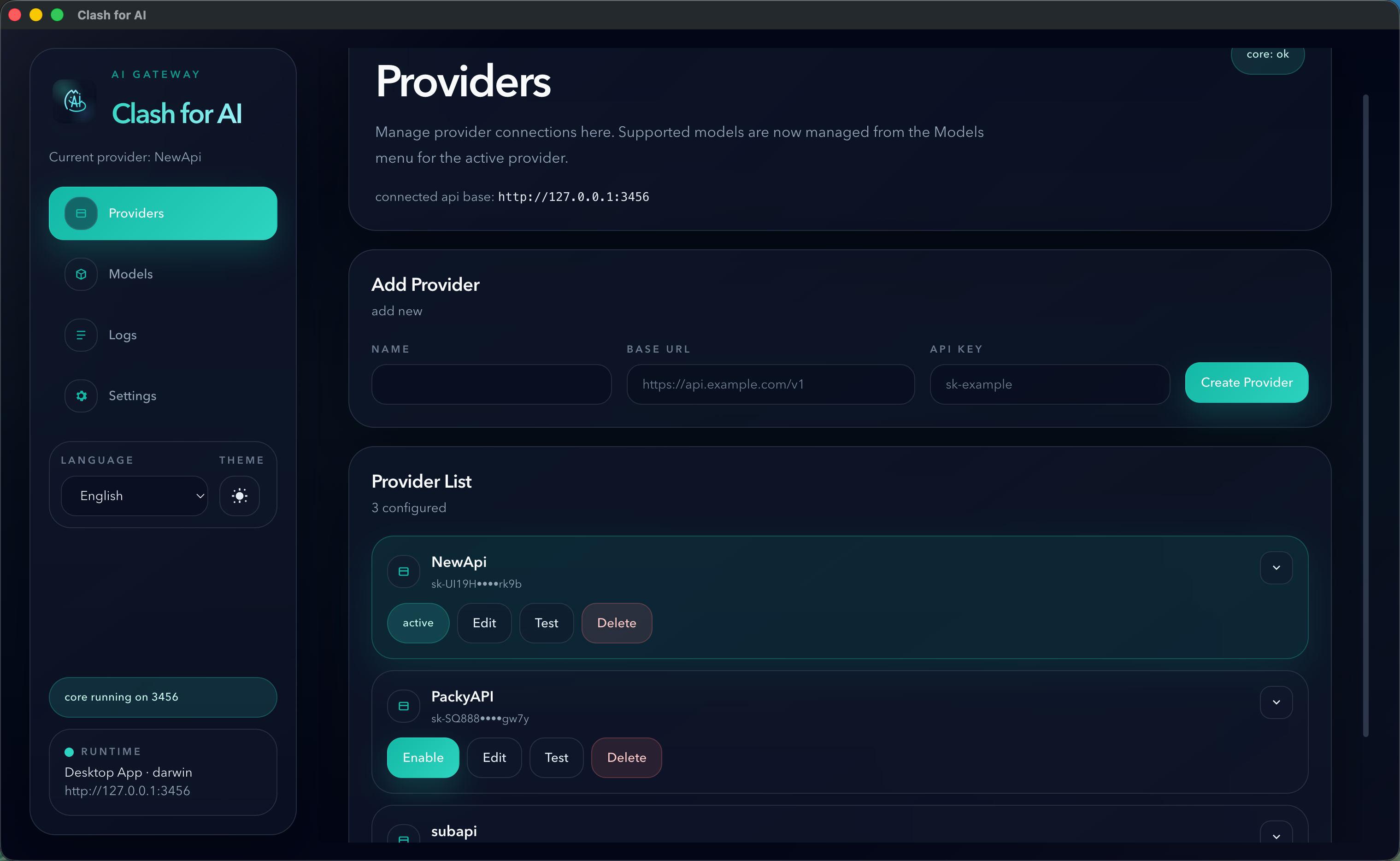
Provider setup checklist
Section titled “Provider setup checklist”When you add a provider, check these fields carefully:
NameBase URLAPI Key
For OpenAI-compatible relay providers, the most reliable Base URL is usually the provider endpoint with /v1.
Examples:
https://example.com/v1https://api.example.com/v1If the provider documentation shows only a root domain, test both the documented value and the /v1 form if model discovery fails.
Tool setup checklist
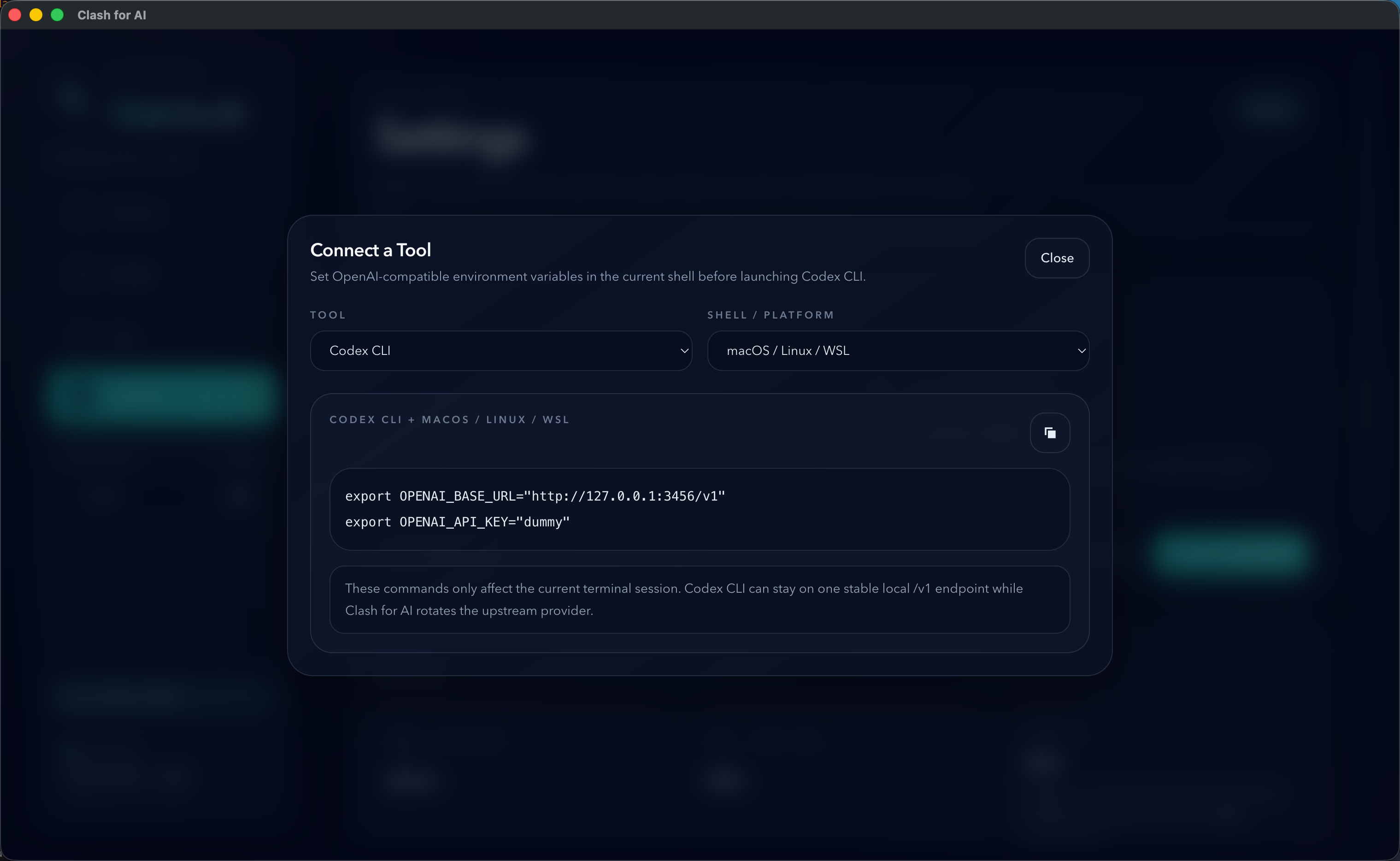
Section titled “Tool setup checklist”For most OpenAI-compatible clients, the simplest setup is:
Base URL: http://127.0.0.1:3456/v1API Key: dummyUse the actual local port shown in the desktop app if it is not 3456.
What the Models page actually does
Section titled “What the Models page actually does”The Models page does not choose the model on behalf of the client tool.
The client tool still decides the requested model name.
The ordered selected models in AI Relay Box are used only as a fallback chain when:
- the incoming request is a JSON
POST, - the request already includes a model field,
- that model is already in the selected model list,
- and the upstream request fails with a retryable condition such as
429,5xx, or a network error.
If the requested model is not in the selected list, AI Relay Box will not switch to a different fallback model automatically.
Model list compatibility notes
Section titled “Model list compatibility notes”Model discovery is a convenience feature, not a guaranteed feature of every relay provider.
Common reasons a model list may fail:
- the provider does not expose model discovery,
- the provider only supports
/v1/models, - the provider returns a non-standard response format,
- the provider uses a protocol AI Relay Box does not support natively.
If the provider can serve requests normally but the model list fails, treat that as a compatibility issue with discovery, not necessarily as a provider failure.
Troubleshooting order
Section titled “Troubleshooting order”When something does not work, use this order:
- Check whether the local core is running.
- Confirm the
connected api basein the desktop app. - Run the provider health check.
- Verify the Base URL, especially whether
/v1is required. - Open the request logs and read the upstream error body.
- Re-test the same provider in a known OpenAI-compatible client.
Current protocol scope
Section titled “Current protocol scope”AI Relay Box currently focuses on:
- OpenAI-compatible upstreams
- Anthropic-compatible upstreams
Gemini native protocol is not currently supported as a first-class upstream protocol.
Recommended next docs
Section titled “Recommended next docs”- Read Providers for compatibility notes.
- Read Tool Integration for client setup patterns.
- Read Deep Link Import if you want websites to open the desktop app and prefill import data.
- Read FAQ for model and fallback behavior clarifications.